Submit Your Article to Golficity
*If your having trouble uploading images into your article please email your images directly to our editing team at [email protected] and we will make sure the images are inserted before publishing. Please use DropBox for larger files.
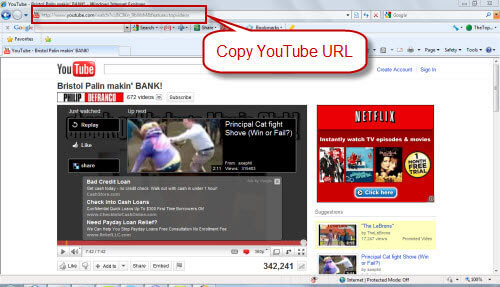
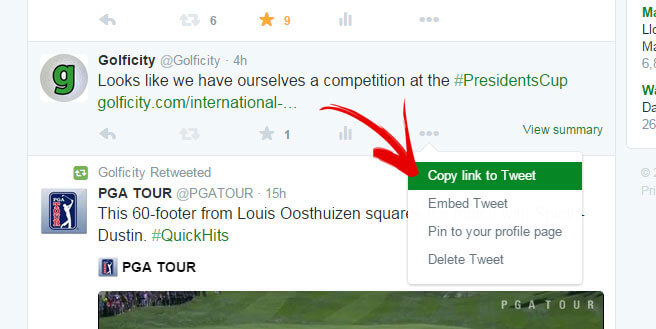
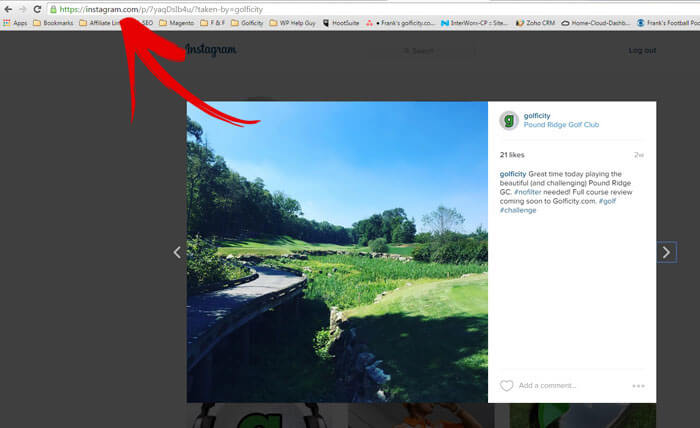
[/text_output] Please make sure you provide a source reference for all images. Copyright images will not be accepted.[/text_output] To embed a YouTube video simply copy and paste the entire YouTube video URL into the body of your article. Be sure to copy the entire URL and paste the link on its own line in your article. Once your article has been published the link will automatically be converted into an embedded video. You can preview your embeded video by first pressing the “SAVE DRAFT” button. After doing so you will be given the option of previewing your article.[/text_output] Remember to paste the URL on its own line in your article. You can preview the embed by first clicking the “SAVE DRAFT” button and then clicking on the preview option.[/text_output] Remember to paste the URL on its own line in your article. You can preview the embed by first clicking the “SAVE DRAFT” button and then clicking on the preview option.[/text_output] Once you save your draft an option will appear to preview your article. You can then go back and make changes as you see fit. Continue to save your draft and repeat the steps above to preview any changes you’ve made before submitting your article.[/text_output] Our editors will get to work right away on checking the formatting and content of your article and will reach out to you with any questions. Once your article has been formatted and approved it will be scheduled for publishing on Golficity. You can review all of your published articles by clicking here.[/text_output]FAQ